
Remote Server Administration Tools (RSAT) are a collection of Windows tools that allow administrators to remotely manage Windows Server and services such as Active Directory, DNS, DHCP and Group Policy from a Windows client PC.
If you regularly manage Windows environments, RSAT is one of those toolsets that is worth having installed on your administrator workstation.
This guide shows how to install RSAT on Windows 11 using PowerShell, including how to install all available RSAT components at once.
It also covers the graphical installation method and how to install only the RSAT tools you actually need.
What is RSAT?
RSAT stands for Remote Server Administration Tools.
Rather than logging directly onto a Windows Server every time you need to perform an administrative task, RSAT allows many of the familiar Windows administration tools to be installed on your Windows client computer.
For example, RSAT includes tools for:
- Active Directory Users and Computers
- Active Directory Administrative Center
- Active Directory Sites and Services
- Active Directory Domains and Trusts
- Group Policy Management
- DNS Server
- DHCP Server
- Server Manager
- Active Directory Certificate Services
- File Services
- Remote Desktop Services
- Hyper-V management
- Network Load Balancing
- Windows Server Update Services
The exact RSAT components available can vary depending on the version and architecture of Windows you are running.
RSAT on Windows 11
On modern versions of Windows, RSAT is provided as Features on Demand rather than as the old standalone RSAT installer.
Microsoft provides RSAT through Windows’ optional features system, and the tools can be installed either through the Windows 11 Settings application or using PowerShell.
This makes PowerShell particularly useful if you are setting up an administrator workstation or need to install the same tools on multiple machines.
Check which RSAT tools are available
Before installing anything, open PowerShell as Administrator and run:
Get-WindowsCapability -Online | Where-Object Name -like 'RSAT*'
You should see a list similar to:
Name  : Rsat.ActiveDirectory.DS-LDS.Tools~~~~0.0.1.0
State : NotPresent

Name  : Rsat.DHCP.Tools~~~~0.0.1.0
State : NotPresent

Name  : Rsat.Dns.Tools~~~~0.0.1.0
State : NotPresent

Name  : Rsat.GroupPolicy.Management.Tools~~~~0.0.1.0
State : NotPresent
The State column tells you whether each component is installed.
For example:
Installed
means the component is already installed, while:
NotPresent
means it is available but has not been installed.
Install all RSAT tools using PowerShell
If you want to install every RSAT component that is currently available, you can use the following PowerShell script:
Get-WindowsCapability -Online |
    Where-Object {
        $_.Name -like 'RSAT*' -and
        $_.State -eq 'NotPresent'
    } |
    ForEach-Object {
        Write-Host "Installing $($_.Name)..."
        Add-WindowsCapability -Online -Name $_.Name
    }
Run PowerShell as Administrator.
The script finds every RSAT capability that is not currently installed and passes each one to Add-WindowsCapability.
Windows will obtain the required components through the configured Windows servicing source, normally Windows Update.
Microsoft documents Add-WindowsCapability as the PowerShell cmdlet used to add Windows capabilities to the running operating system.
A shorter version
If you prefer a one-liner, you can use:
Get-WindowsCapability -Online |
    Where-Object Name -like 'RSAT*' |
    Where-Object State -eq 'NotPresent' |
    Add-WindowsCapability -Online
I prefer the longer version because it displays which component is currently being installed.
Install only the RSAT tools you need
You don’t necessarily need to install every RSAT component.
For example, if you primarily manage Active Directory, you can install the Active Directory tools with:
Add-WindowsCapability -Online -Name Rsat.ActiveDirectory.DS-LDS.Tools~~~~0.0.1.0
For DNS:
Add-WindowsCapability -Online -Name Rsat.Dns.Tools~~~~0.0.1.0
For DHCP:
Add-WindowsCapability -Online -Name Rsat.DHCP.Tools~~~~0.0.1.0
For Group Policy:
Add-WindowsCapability -Online -Name Rsat.GroupPolicy.Management.Tools~~~~0.0.1.0
You can find the exact capability names on your machine using:
Get-WindowsCapability -Online |
    Where-Object Name -like 'RSAT*' |
    Select-Object Name, State
Check which RSAT tools are installed
To display only the RSAT components that have already been installed:
Get-WindowsCapability -Online |
    Where-Object {
        $_.Name -like 'RSAT*' -and
        $_.State -eq 'Installed'
    } |
    Select-Object Name, State
This is useful if you are troubleshooting an administrator workstation or want to confirm that a particular RSAT component has installed successfully.
Installing RSAT through the Windows 11 GUI
If you don’t want to use PowerShell, RSAT can also be installed through Windows 11.
Open: Settings → System → Optional features
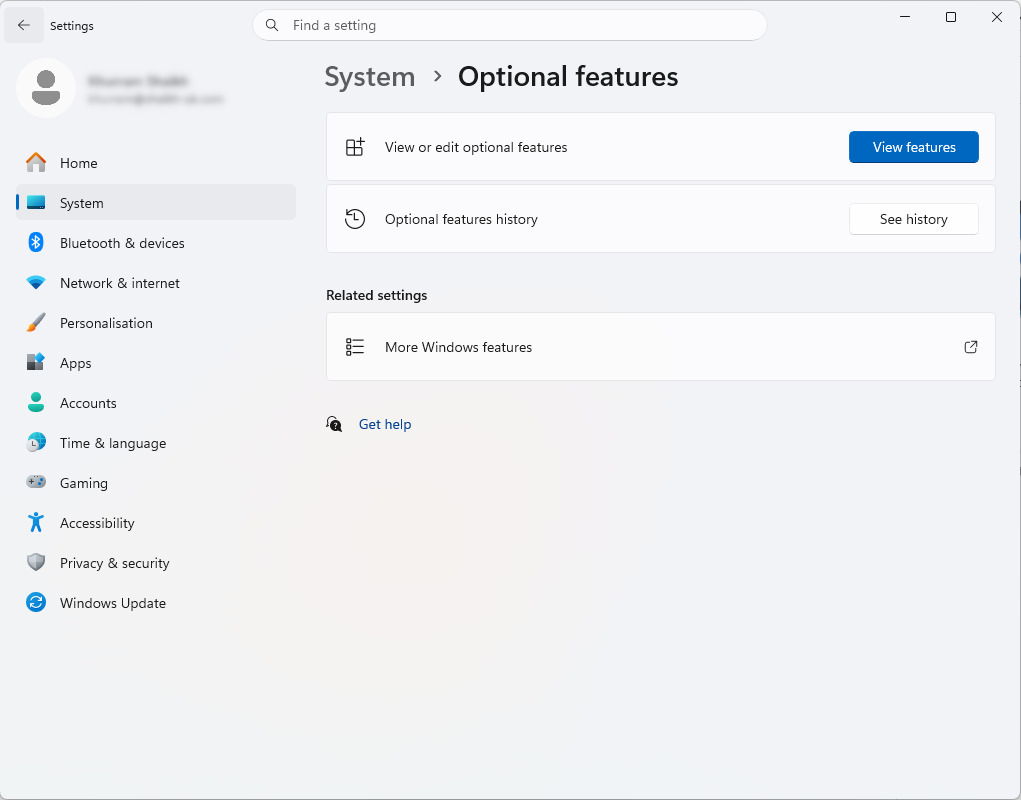
Then select: View features
Search for: RSAT
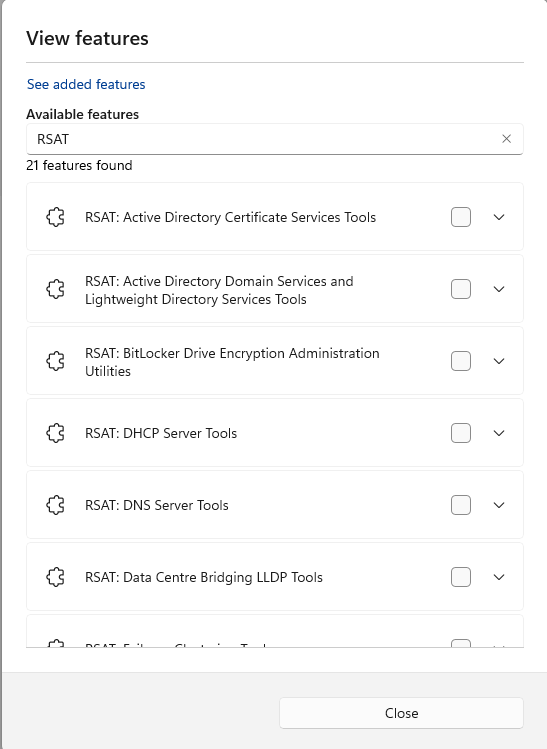
Windows will display the available RSAT components.
Select the tools you need and click Next → Install.
Microsoft notes that the exact location of Optional Features can vary between Windows 11 releases, particularly on older builds, but the current Windows 11 interface places it under Settings → System → Optional features.
You can also open the Optional Features page directly by pressing Win + R and entering:
ms-settings:optionalfeatures
Why use PowerShell instead?
For a single PC, the graphical interface is perfectly fine.
PowerShell becomes much more useful when you are:
- Setting up a new administrator workstation
- Building a standard IT support image
- Preparing several machines
- Automating workstation configuration
- Using Intune or another management platform
- Troubleshooting RSAT installations
- Ensuring a consistent set of administration tools is installed
For example, the script can be incorporated into a larger workstation deployment process.
Installing RSAT without Windows Update
There are situations where Windows cannot obtain the RSAT components from Windows Update.
This can happen on machines that are restricted from accessing Windows Update, or in environments where servicing is controlled through enterprise management infrastructure.
In those situations, Microsoft provides Windows Features on Demand media that can be used as an installation source. For Windows 11, this is provided through the Languages and Optional Features media.
You can then specify a local source with Add-WindowsCapability:
Add-WindowsCapability `
    -Online `
    -Name Rsat.ActiveDirectory.DS-LDS.Tools~~~~0.0.1.0 `
    -Source "D:\LanguagesAndOptionalFeatures" `
    -LimitAccess
Replace D: with the drive letter of your mounted Features on Demand media.
This is particularly useful when working with controlled or offline Windows environments.
Troubleshooting RSAT installation
RSAT is not appearing in Optional Features
First check whether Windows can see the RSAT capabilities:
Get-WindowsCapability -Online |
    Where-Object Name -like 'RSAT*'
If the command returns RSAT components, they are available to the operating system even if you cannot easily find them through the Settings interface.
Installation fails with a Windows Update error
If Add-WindowsCapability fails, check that the computer can communicate with its configured Windows Update or servicing source.
You can also try specifying a Features on Demand source using the -Source parameter.
Check the Windows version
Run:
winver
or:
Get-ComputerInfo | Select-Object WindowsProductName, WindowsVersion, OsBuildNumber
This is useful when troubleshooting RSAT because Features on Demand packages need to correspond to the Windows version being serviced.
Windows 11 ARM64 considerations
There is an important exception for administrators using Windows 11 on ARM64 devices.
Microsoft currently documents that, on Windows 11 25H2 ARM64, RSAT Features on Demand are not supported for some tools. A subset of RSAT tools can instead be accessed through the Windows Features interface.
If you are using a conventional x64 Windows 11 PC, this limitation generally isn’t relevant.
Verify that the tools are working
After installation, open the Start menu and search for: Windows Tools
Depending on the components installed, you should see tools such as:
- Active Directory Users and Computers
- Active Directory Administrative Center
- Group Policy Management
- DNS
- DHCP
- Server Manager
- Certification Authority
- Computer Management
You can then use these tools to manage your Windows Server environment remotely.
Conclusion
RSAT is an essential set of tools for anyone who regularly administers Windows Server environments.
While Windows 11 provides a straightforward graphical installation method, PowerShell makes the process considerably easier when setting up administrator workstations or deploying the same tools across multiple machines.
If you simply want everything installed, the following command is all you really need:
Get-WindowsCapability -Online |
    Where-Object {
        $_.Name -like 'RSAT*' -and
        $_.State -eq 'NotPresent'
    } |
    ForEach-Object {
        Add-WindowsCapability -Online -Name $_.Name
    }
Run it from an elevated PowerShell session, wait for the installation to complete, and you should have all RSAT components available for your Windows administration tasks.